
Creating an account
Creating a Trukton account takes just a few minutes and gives you access to the full set of features. This guide walks you through each step, from entering your information to confirming your subscription.
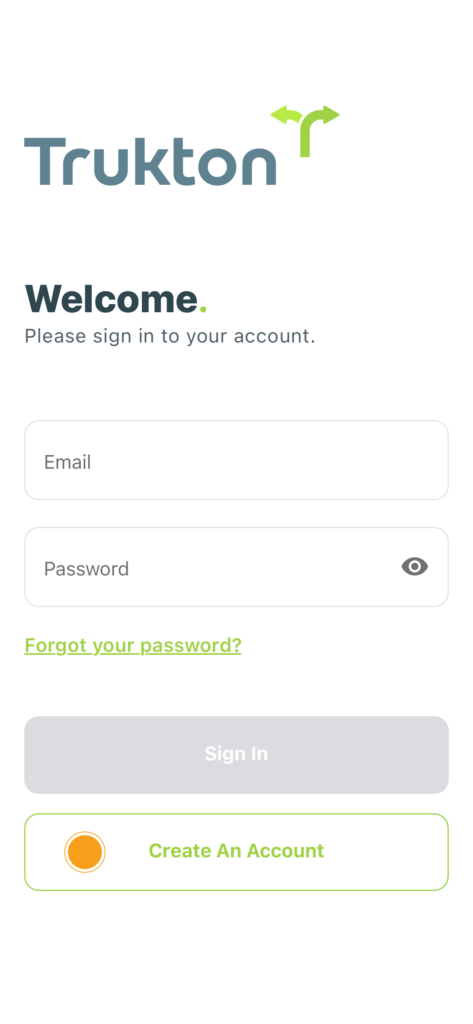
To begin, tap Create an Account at the bottom of the screen. If you already have an account, use this page to sign in with your email and password.
If you’ve forgotten your password, use the link below the login fields to reset it quickly.
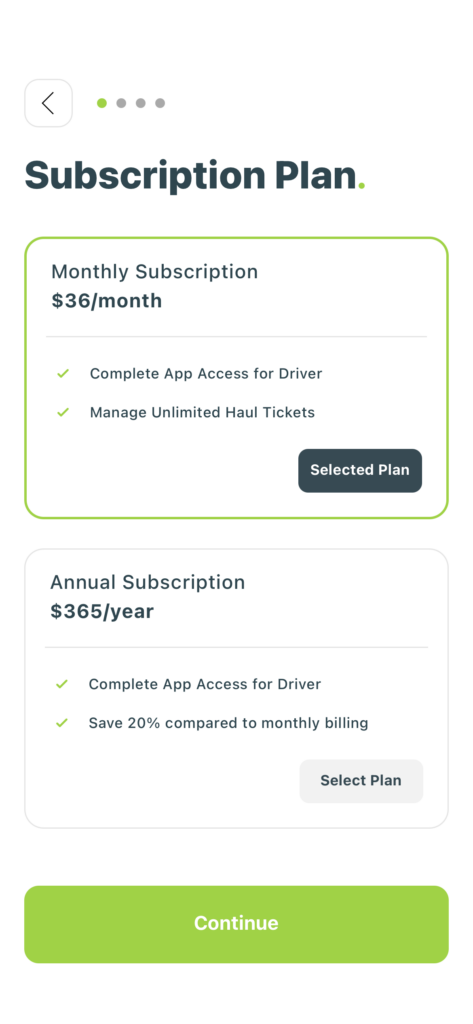
Pick the plan that works best for you. Both options give you full access to the app and unlimited haul ticket management. The monthly plan is a flexible pay-as-you-go option, while the annual plan saves you money over time.
You can switch plans later if your needs change.
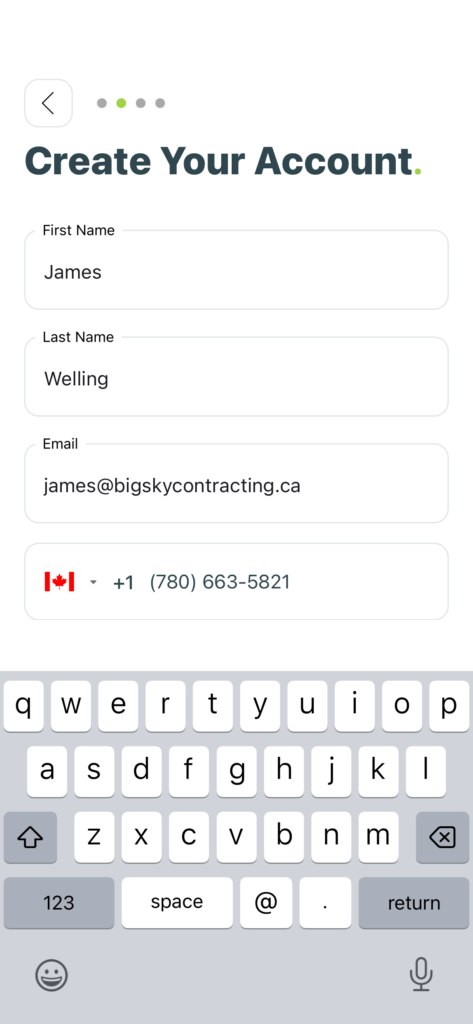
Fill in your first name, last name, email address, and phone number. You’ll also have the option to upload a profile photo.
Adding a photo helps job managers easily identify you, but it’s optional.
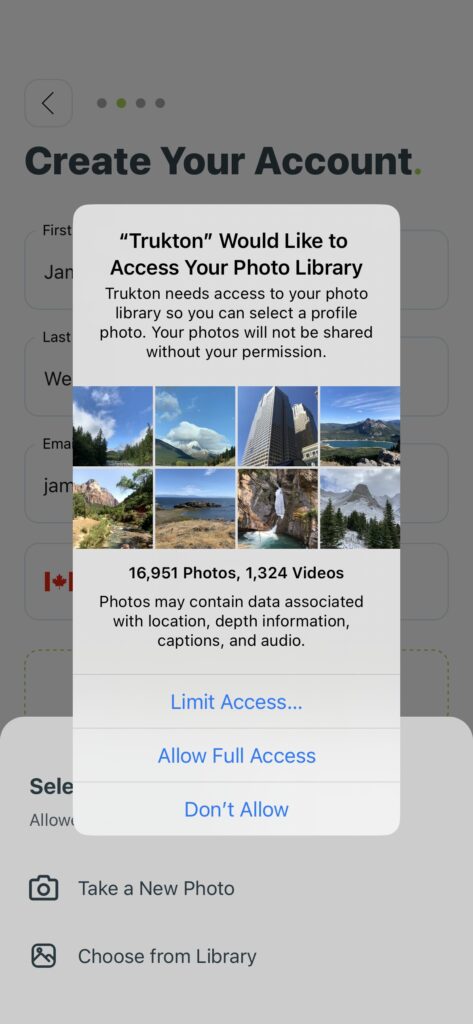
To upload a profile photo, you’ll be prompted to give the app permission to access your photo library. You can take a new photo or choose one from your library.
Your photos are not shared and are only used for your Trukton profile.
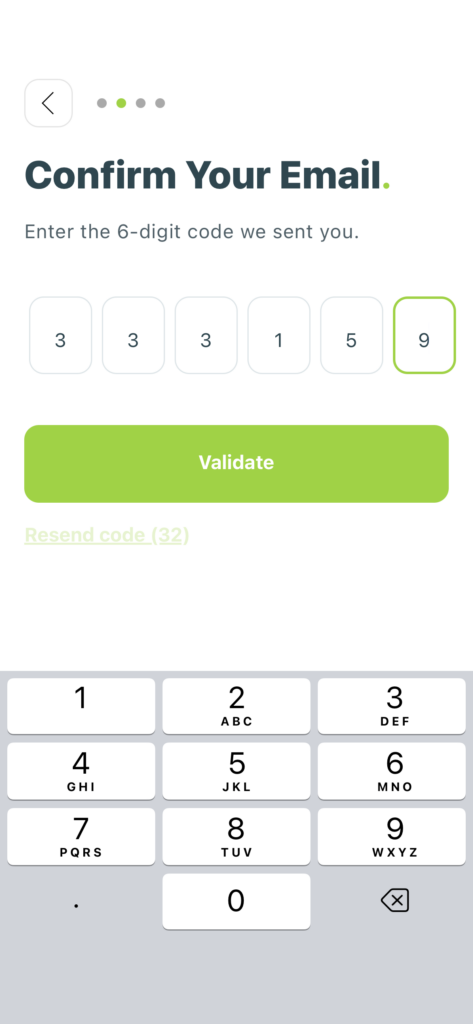
Enter the 6-digit code sent to your email address. This step confirms your contact info before continuing.
Didn’t receive a code? Tap Resend code to get a new one.
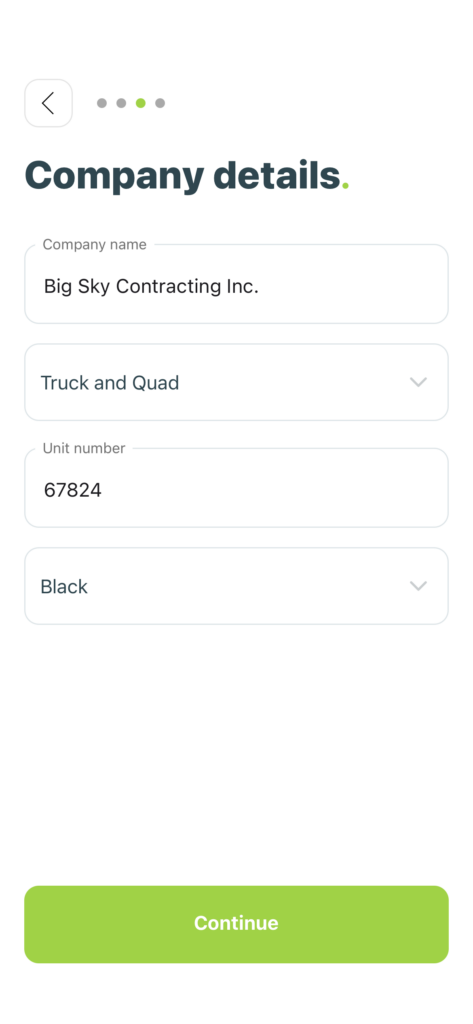
Enter your company name, choose your truck type, enter your unit number, and select your truck color.
These details appear on your haul tickets and help keep things organized.
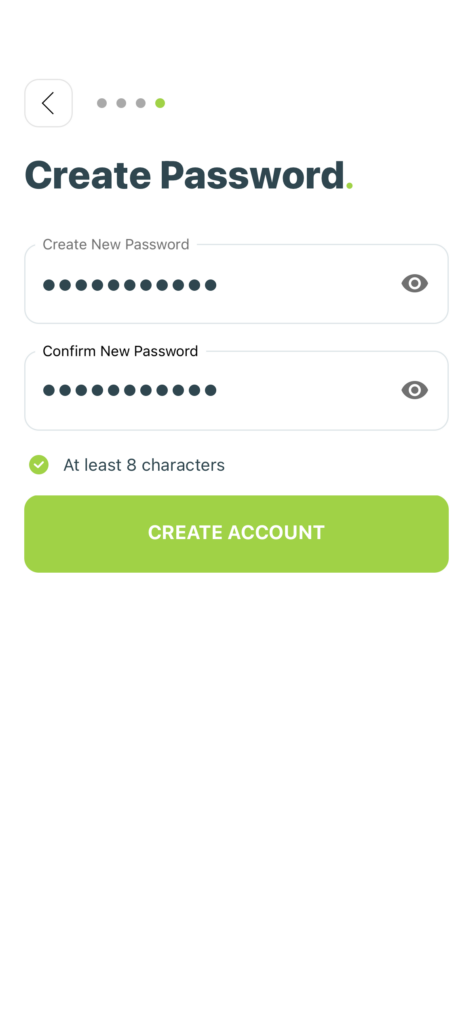
Create and confirm a secure password for your account. It must be at least 8 characters long.
Use a password that’s easy to remember but hard to guess.
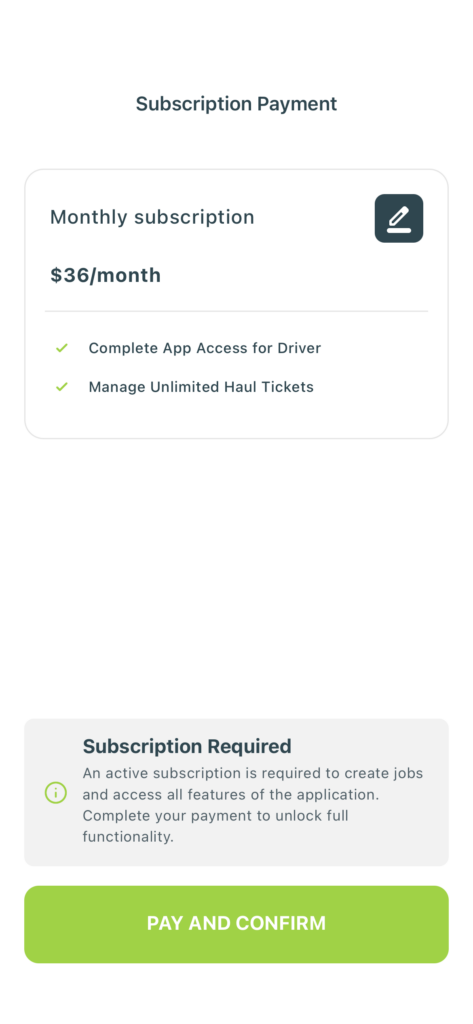
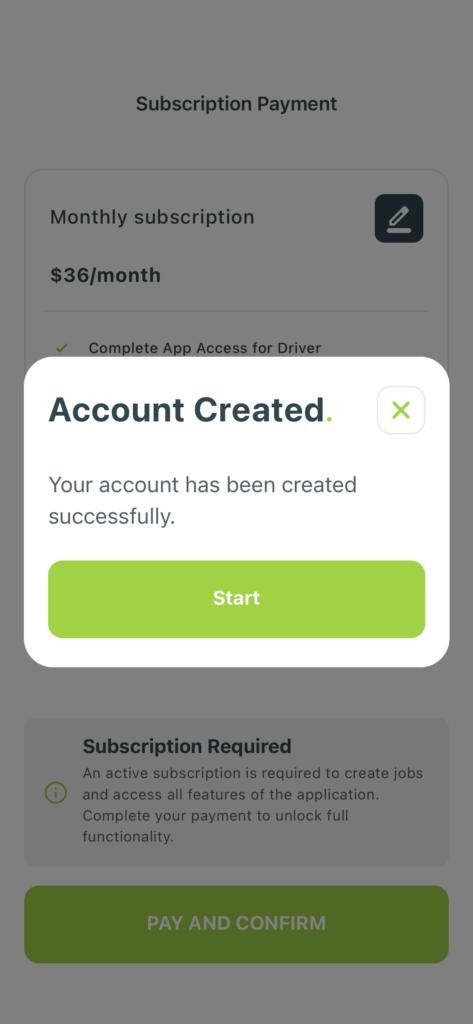
Tap Pay and Confirm to activate your account and subscription. This enables full access to Trukton’s job management tools.
A subscription is required to create jobs and use the app’s core features.
You’re all set. Your account has been created successfully. Tap Start to begin using Trukton.
You can now create jobs, track hauls, and manage all your site activity from the app.
Was this helpful?