
Adding a new material
If your delivery includes different materials going to different locations, you can add them as separate hauls under the same job. This keeps your job organized and your haul tickets accurate.
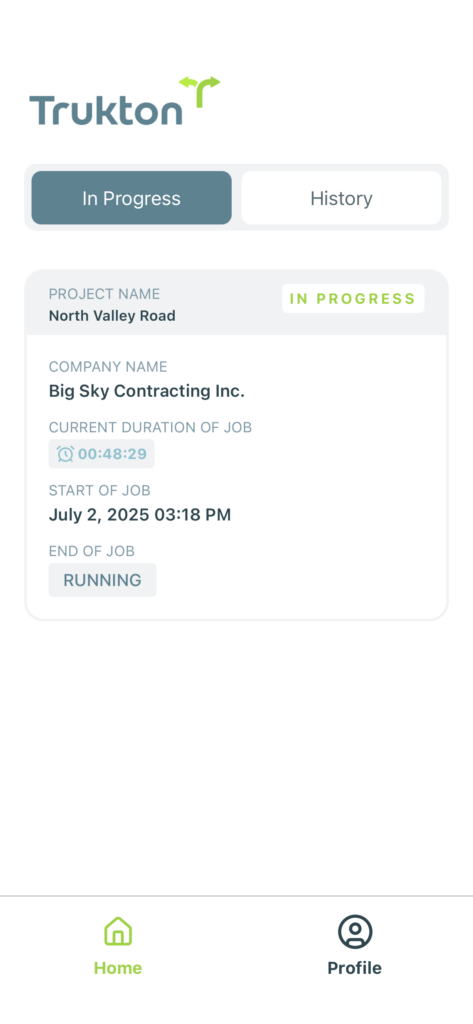
On the Home screen, select the job under the In Progress tab that you want to update. This opens your active job view.
If you don’t see your job listed, double-check that you’re in the In Progress view, not History.
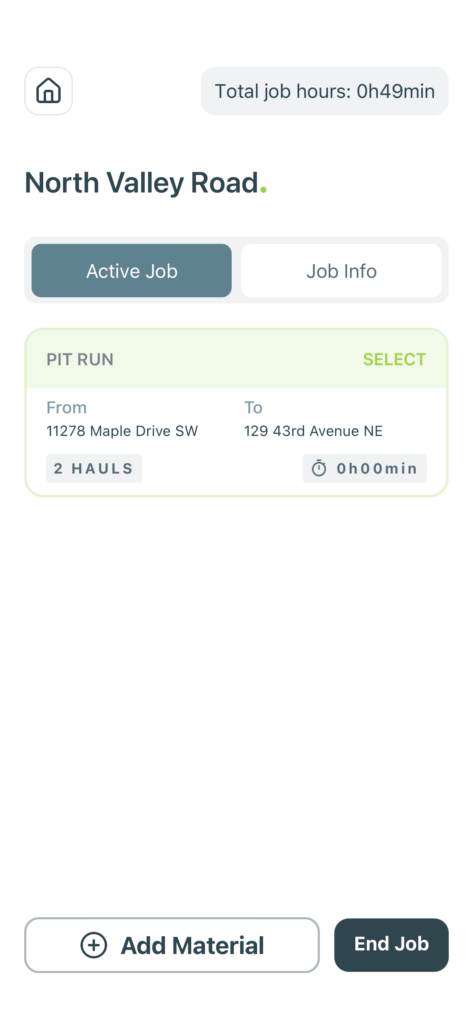
At the bottom of the Active Job screen, tap the Add Material button to begin a new haul entry.
Each haul entry will track its own location, photos, and load activity for better job clarity.
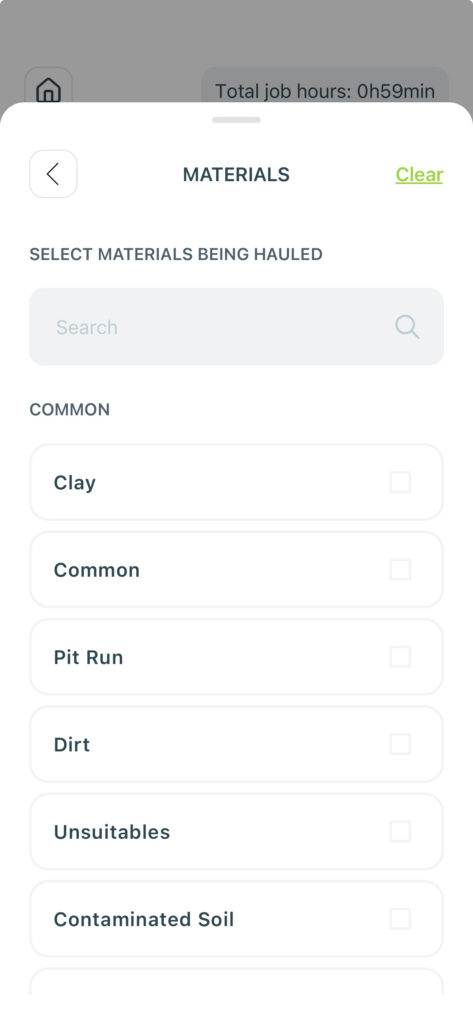
Use the checklist to choose the material you’ll be hauling. You can select more than one material at a time if they share the same haul location.
Use the search bar to quickly find an existing material, or to add a new one if the material you’re hauling isn’t already listed. Just type the name and follow the steps to have it added to your materials list.
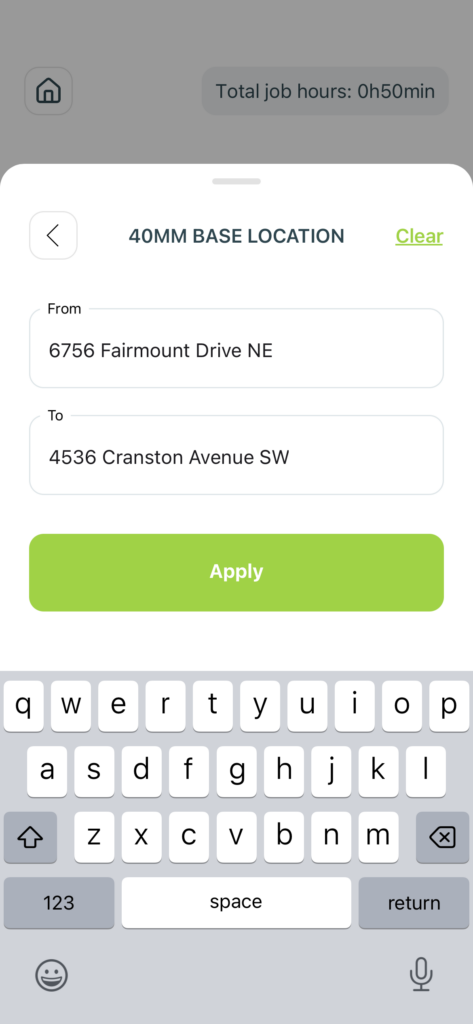
In the From and To fields, enter where the haul is coming from and where it’s going. Tap Apply to save your location details.
Keeping location data consistent helps when generating haul tickets or job summaries.
Was this helpful?