
Changing times
If the actual work hours differ from what was recorded in-app, you can make quick adjustments before finalizing a job. This includes editing the recorded start and end times or adding extra time manually for things like unexpected delays.
From the Home screen, tap on the job listed under the “In Progress” tab. This brings you to the job overview screen where you can see current job details.
You can only adjust times before a job is submitted, so make changes before capturing a signature.
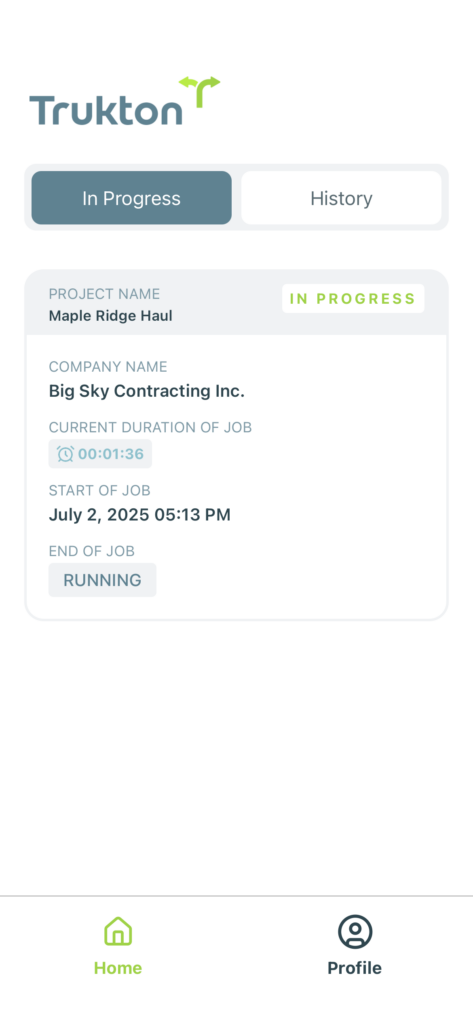
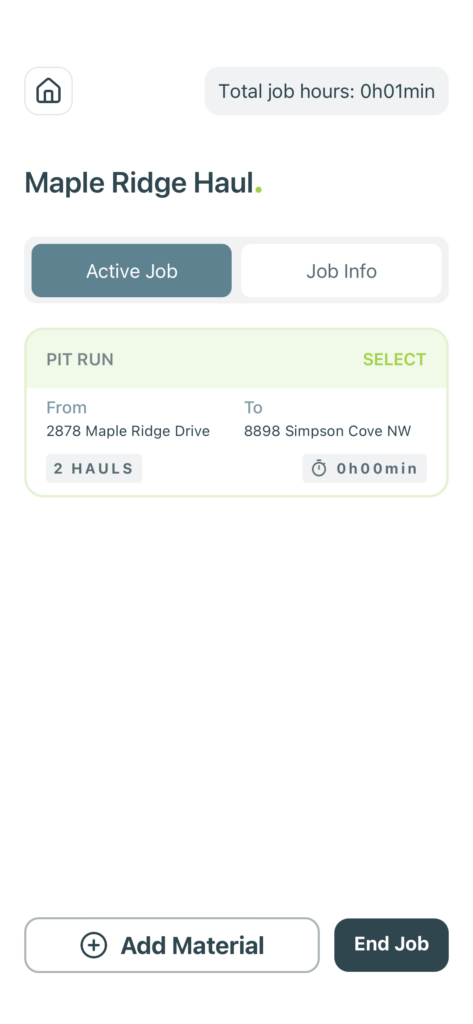
Once the job is complete, tap the “End Job” button at the bottom of the screen to begin the submission process.
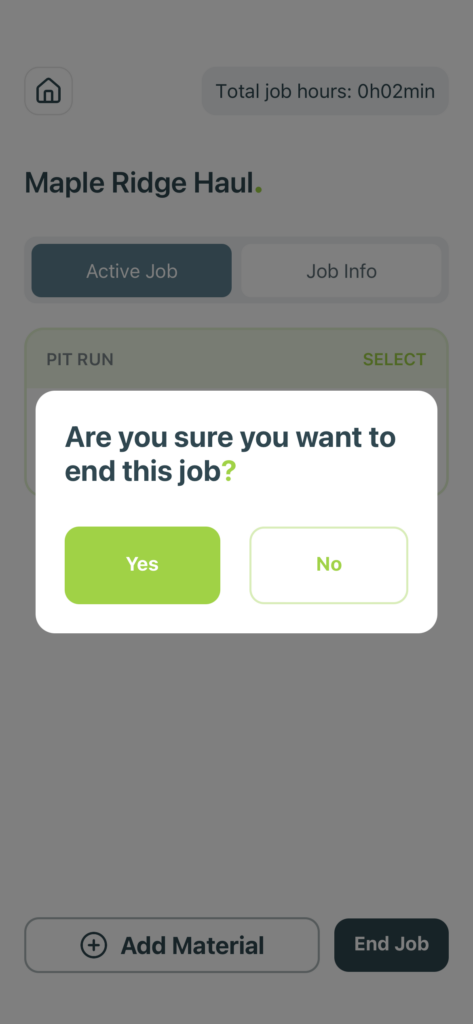
A confirmation message will appear asking if you’re sure you want to end the job. Press Yes to continue.
In the Job Ticket screen, tap the pencil icon above the start or end time to make any needed edits.
Editing either time will bring up the time selector so you can dial in the correct value.
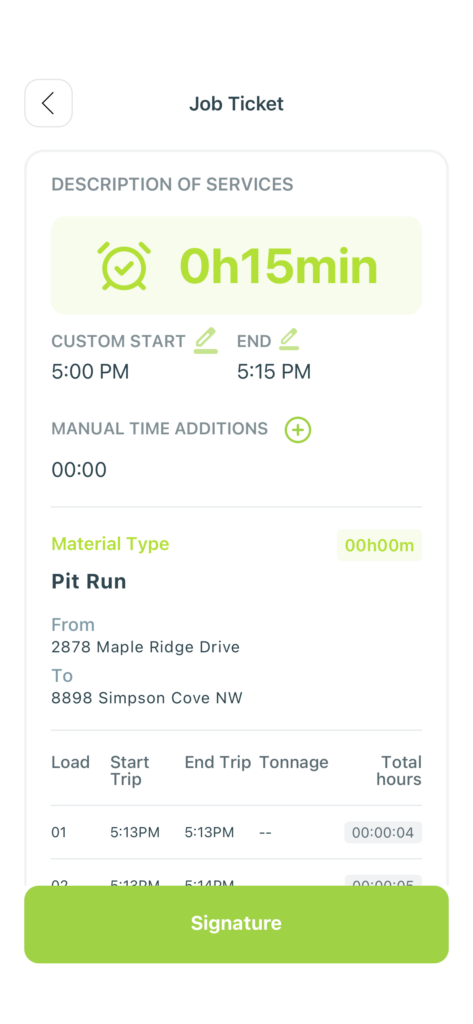
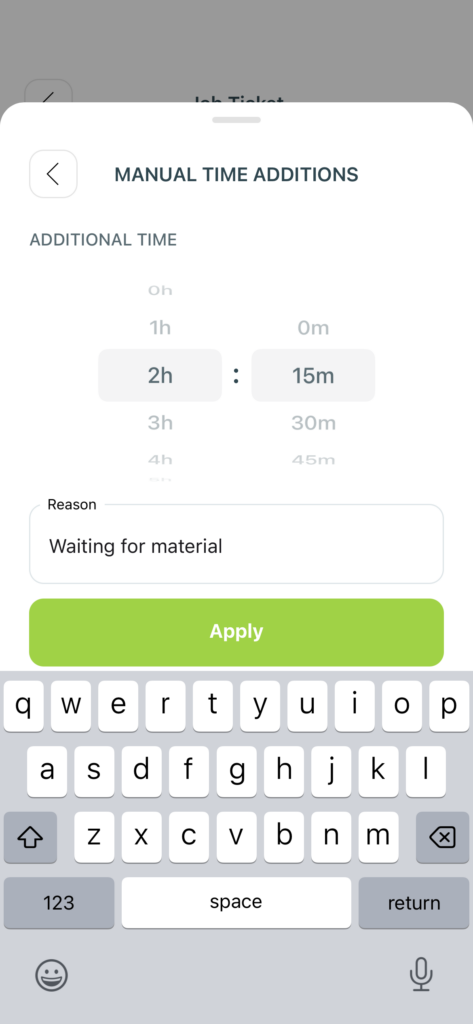
If there was downtime or additional effort that should be billed, tap the plus icon beside Manual Time Additions. Choose the time to add and enter a reason, such as “waiting for material,” then press Apply.
Adding a clear note helps explain the additional charge when the ticket is reviewed or shared.
Was this helpful?