
Adding an additional email
You can add extra email recipients to a job at several different points, depending on your workflow. This includes when you’re starting a new job, duplicating an existing one, reviewing the job summary before signing the ticket, or viewing a completed job in your History tab. Each scenario allows you to enter or edit recipient email addresses so that delivery tickets are sent to the right people. The sections below walk through each method, with a screenshot to help guide you.
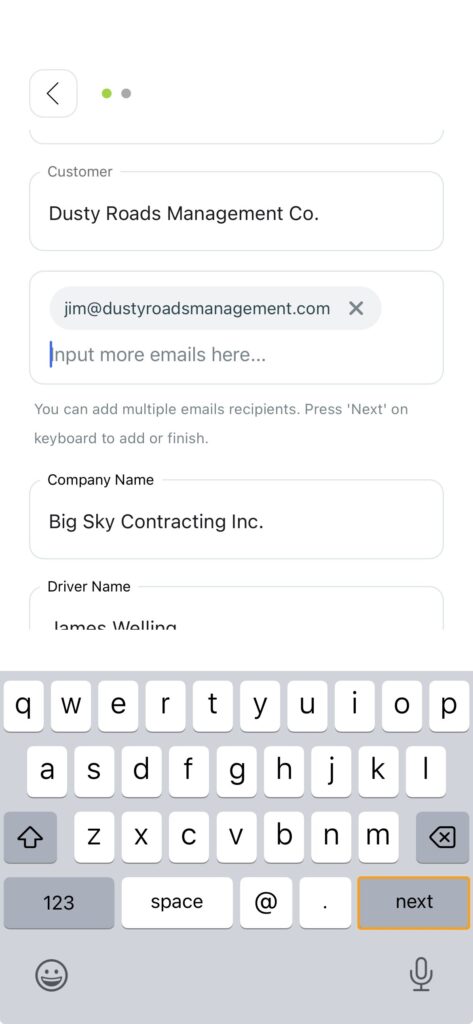
To add multiple email recipients when setting up a new job, start by entering the first email address. After pressing Next on the keyboard, a new field will appear labeled Input more emails here… where you can continue adding additional contacts. Each one you enter will receive a copy of the job ticket once the job is completed.
After typing each email address, press the Next button on your keyboard to confirm and add it before entering another.
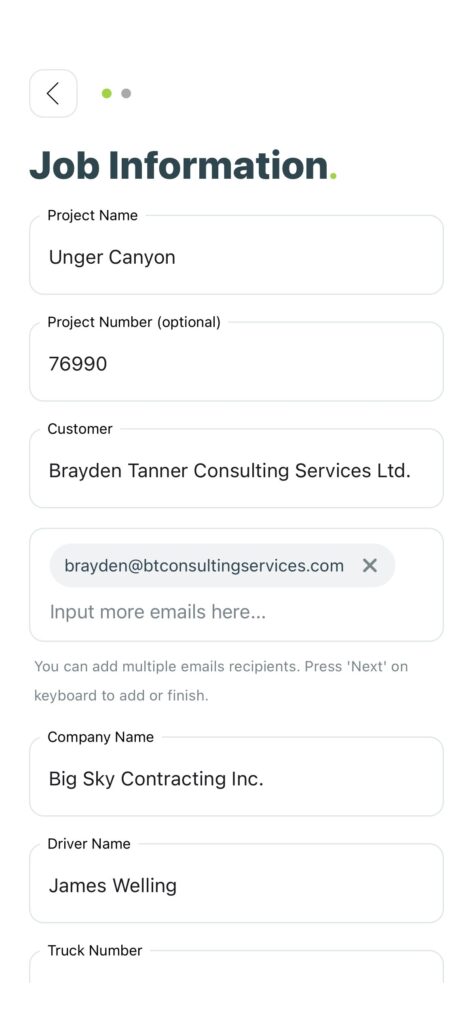
After selecting Duplicate Job from your job history, tap the Edit link at the top right of the Job Summary screen. This opens the job details, where you can add or delete customer email addresses. All listed recipients will receive a copy of the job ticket once it’s complete.
After typing each email address, press the Next button on your keyboard to confirm and add it before entering another.
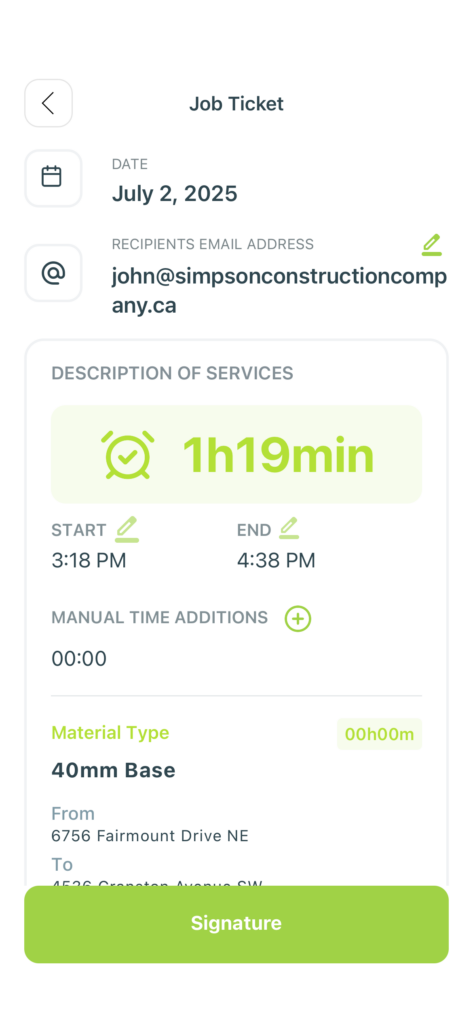
Before signing and sending the job ticket, you can review all job details. If you need to add or update recipient emails, just tap the pencil icon and enter the new email addresses. Everyone listed will receive the final signed ticket.
After typing each email address, press the Next button on your keyboard to confirm and add it before entering another.
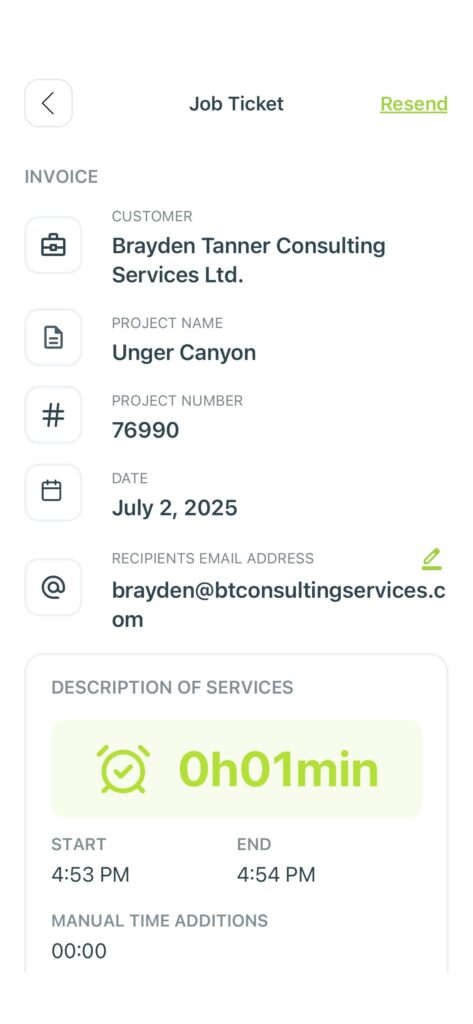
To share a past ticket with new recipients, start by opening the job from the History tab. Tap the pencil icon next to the existing email address, enter any new addresses, then press save. Once updated, tap Resend to deliver the job ticket to everyone listed.
After typing each email address, press the Next button on your keyboard to confirm and add it before entering another.
Was this helpful?